
FIRST CH TOOLS / Images / 88 RICHMENU CHECK
LINE Rich Menu Settings Sheet Maker & Image Grid Check
Overlay the tap-area grid on a rich menu image and check each area for text cut at the lines. Add the actions and URLs to get a settings sheet for whoever sets it up.
You can also drop or paste an imageJPEG or PNG. Any size is fitted to the required size for display.
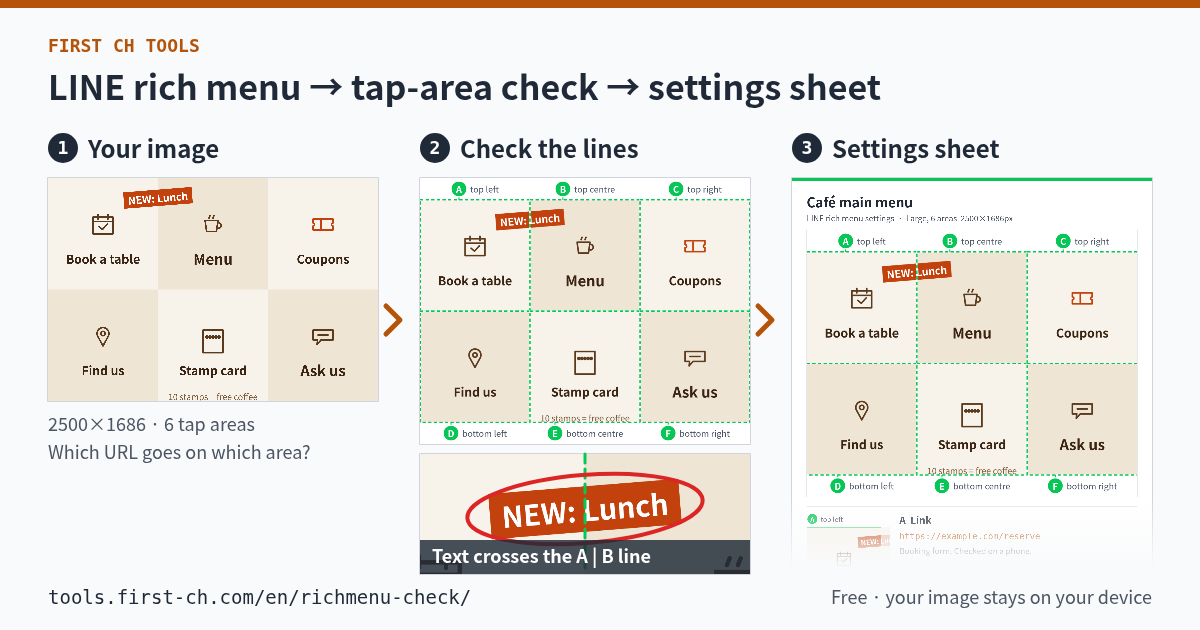
Whole menu (lines, with labels outside the image)
Settings for each area (the faded edge in each crop belongs to the next area)
Settings sheet (one image)
Show the text to copy
JPEG for upload
Fits the image to the template’s exact size and lowers the quality until it is under 1 MB (you can keep editing above while it works).
- Actual size
- File size
Your original file already meets the exact size and 1 MB (it can be uploaded as is).
Save the JPEGFile size guide: both the official manual and the Messaging API say 1 MB or less (sources: LY Corporation for Business, “Creating a rich menu” (Japanese) and LINE Developers, “Upload rich menu image”; checked 2 Nov 2026). This page counts 1 MB as 1,000,000 bytes.
Your image and entries never leave your device. Only the settings you type (menu name, actions, URLs, notes) are kept in this browser; the image is not stored. Nothing is registered in the LINE admin or API.
How to Use
- Add your imagePress “Choose a rich menu image”, or drop or paste one. The template closest to its shape is picked and the whole menu appears at once with lines and labels. Images with a different shape are padded to fit, so choose the padding colour (the image’s edge colour, white, black or any colour). You can also try the café and salon samples first.
- Check and fill in each areaBelow the whole menu, each tap area is shown as an enlarged crop. The green line is the edge of the tap area and the faded part belongs to the next one. While checking that no text or logo is cut at the line, choose the action (Link, Coupon, Text, Reward card or No action) and write the URL or text and a note.
- Send it and make the upload image“Save the sheet” saves one PNG (1080 px wide) with the whole menu, the crops and your entries, ready to paste into LINE or email. The same content can be copied as text. “Make the exact-size JPEG” fits the image to the template size aiming at under 1 MB, then shows the actual size and file size of the saved file.
About This Tool
Settings sheet and image grid check
A rich menu is the menu shown at the bottom of a LINE Official Account chat. It uses a single background image, and each area fixed by the template gets its own tap action. When one person makes the image and another sets it up in the admin, it often takes many messages to sort out which URL goes on area B or which coupon is meant. This page puts the image and the settings on one sheet you can hand over, and checks along the way whether any text is cut at the lines and whether the size and file size fit.
The two templates are the ones in the admin’s “Select template” dialog: large with 6 areas (2 rows × 3 columns, 2500×1686 px) and compact with 2 equal areas (2500×843 px), as shown in the official manual (Japanese). Areas are labelled A, B, C… from the top left, as in the admin. The lines are at 833 and 1667 px across (the 2500 px width split into three) and 843 px down (the 1686 px height split in two); the compact template is split at 1250 px. Each crop includes an extra 12% of the area’s shorter side around it, shown faded.
The action list follows the admin’s “Action” choices (Link, Coupon, Text, Reward card, No action). The official manual says an action label (up to 20 characters) is required for URL and coupon actions, and not every area can be “No action”. Images must be JPG, JPEG or PNG and 1 MB or less. If you register through the Messaging API, the rich menu image requirements are also JPEG or PNG, up to 1 MB (both checked on 2 Nov 2026).
Resize to the required size and make a JPEG under 1 MB
An image with a different shape is scaled to the template’s required size (2500×1686 or 2500×843), centred and padded. The JPEG is first written at quality 92; if that is over 1 MB, a binary search between quality 40 and 92 finds the highest quality that stays at or under 1 MB (1,000,000 bytes). The saved file itself is read back to show its actual size and file size. Transparent parts are filled with the padding colour. This page does not design rich menus, detect text crossing a line automatically, offer custom grids, cropping, other templates or sizes, PNG compression, or register anything in the admin or API. Everything runs in your browser, and your image and entries never leave your device.
Other Tools
Tools to use with images for LINE and social media